Vacancies overview
A Vacancy is a job opening you are recruiting for. The Vacancies area is where you create openings, track applicants against them, and manage everything about a role's hiring process.
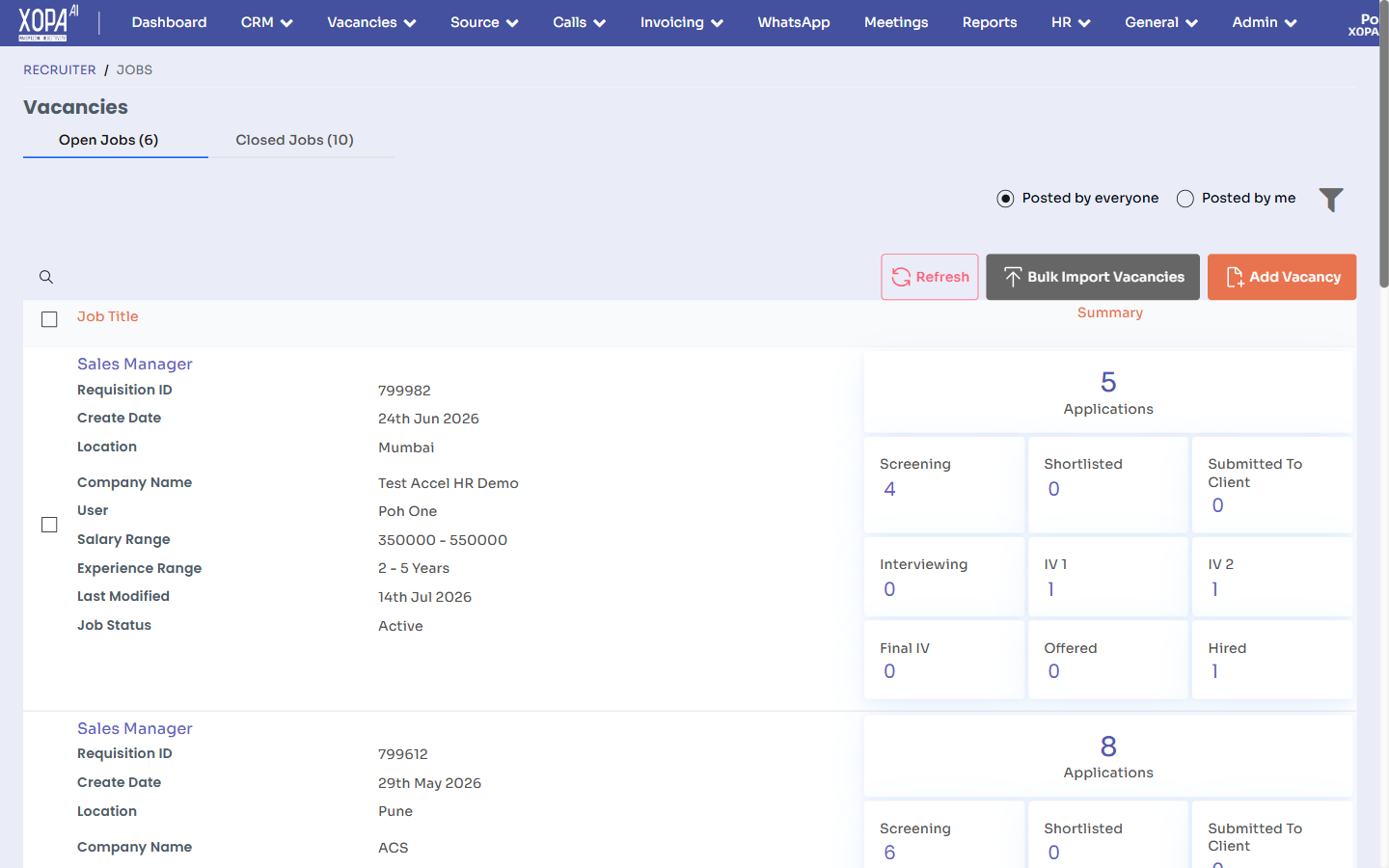
The Vacancies list: Open Jobs / Closed Jobs tabs, each vacancy showing its requisition ID, location, company, and a stage-by-stage applicant summary, with Add Vacancy and Bulk Import Vacancies (top right).
Finding your vacancies
Open Vacancies in the top navigation bar. The list typically shows:
- Open vacancies — roles currently accepting candidates.
- Closed vacancies — filled or cancelled roles.
- Shared with me — vacancies other recruiters have shared with you for collaboration.
Use the filters and search at the top to narrow by status, owner, department, location, or keyword.
What you can do here
| Action | Where | Guide |
|---|---|---|
| Create a new vacancy | Add Vacancy | Create a vacancy |
| Configure AI, prescreening & pipeline | Vacancy → Settings | Vacancy settings |
| Import many vacancies at once | Bulk Import Vacancies | Bulk import |
| Collaborate with colleagues | Vacancy → Share | Sharing & collaboration |
The vacancy detail page
Select any vacancy to open its detail page. From here you can:
- View and edit the job information (title, description, requirements, location, salary).
- See the applicant pipeline — candidates grouped by stage.
- Open settings for AI scoring, prescreening questions, and the workflow.
- Access actions such as sharing, publishing to a career page, and closing the vacancy.
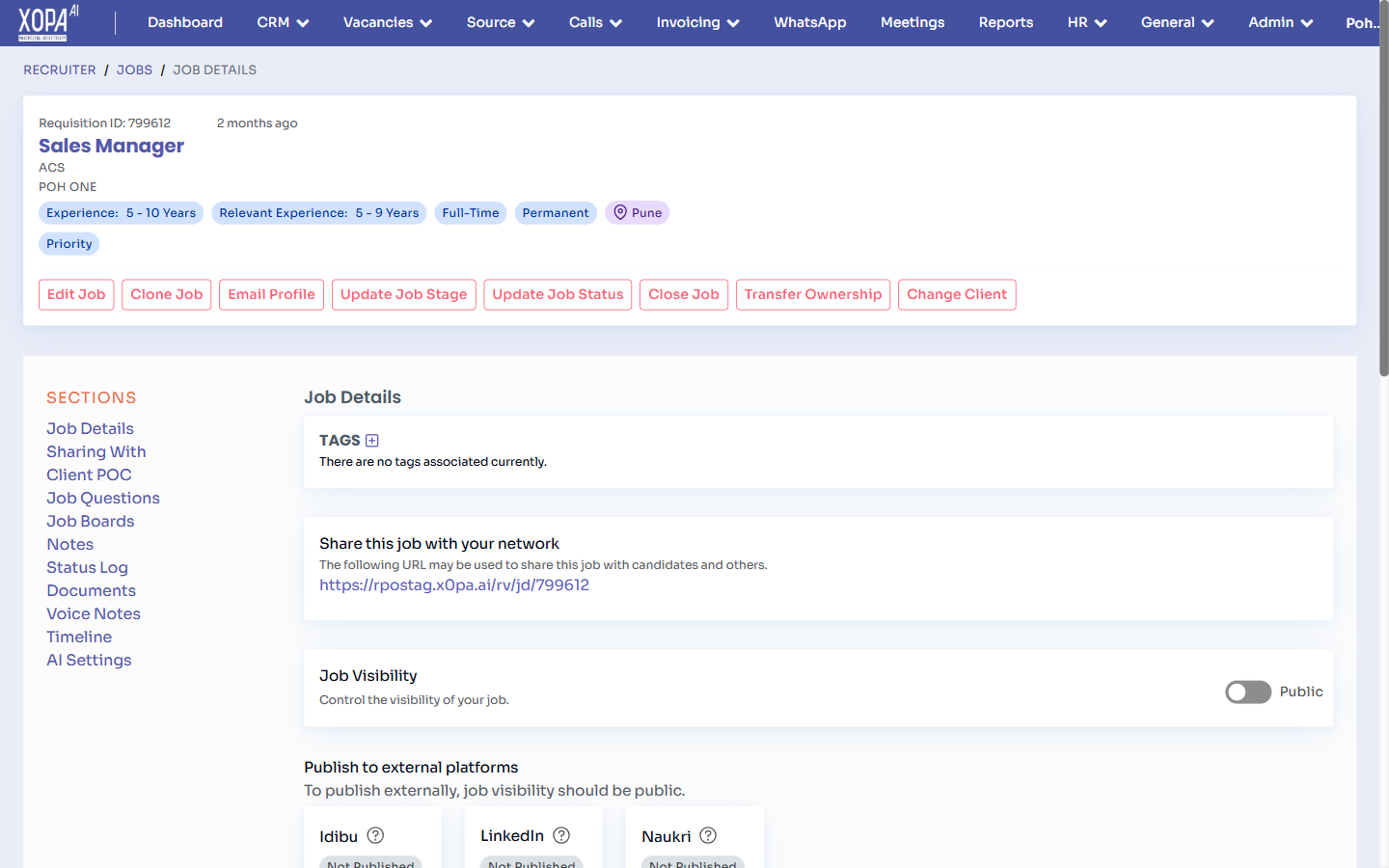
A vacancy detail page: the job summary and action buttons (Edit Job, Update Job Stage/Status, Close Job, Transfer Ownership) at the top, with sections for Sharing, Client POC, Job Questions, Job Boards, Notes, Status Log, and AI Settings.
Vacancy status
Vacancies move through statuses such as Open, On Hold, and Closed. Closing a vacancy stops new applications; you can reopen it later if needed.