Logging in & the interface
Signing in
- Open your organisation's X0PA AI URL in a web browser (for example,
https://<your-company>.x0pa.ai). - Enter your email address and password.
- Select Sign In.
If your organisation uses Single Sign-On (SSO), select your SSO provider instead and authenticate with your corporate credentials.
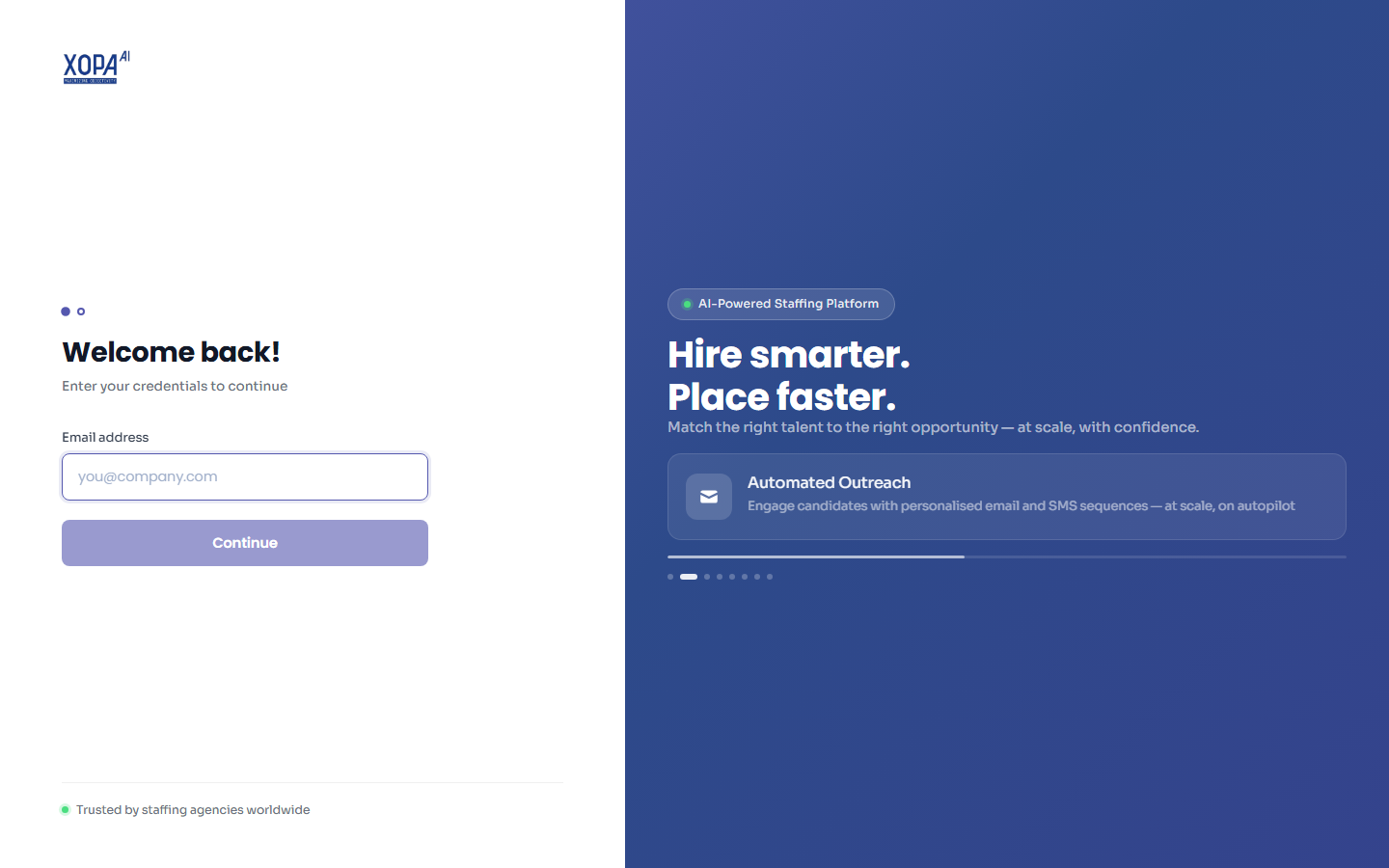
The X0PA AI sign-in screen. Enter your email, select Continue, then enter your password.
:::tip Forgot your password? Select Forgot password? on the login screen and enter your email. You'll receive a reset link. If you don't receive it, check your spam folder or contact your administrator. :::
User roles
What you see after logging in depends on your role. This guide covers the first two:
| Role | Typical user | Access |
|---|---|---|
| Recruiter | Recruitment team members | Vacancies, sourcing, pipeline, interviews, offers, reports |
| Administrator | System / company admins | Everything a recruiter sees, plus the Admin area for configuration |
| Hiring Manager / Client | External hiring stakeholders | A limited view of their applications and jobs (not covered in this guide) |
| Candidate | Job seekers | The candidate portal to browse and apply for jobs (not covered in this guide) |
Your exact menu items are also controlled by access permissions your administrator sets. See Roles & permissions.
The main interface
Once signed in, the screen is divided into a few consistent areas.
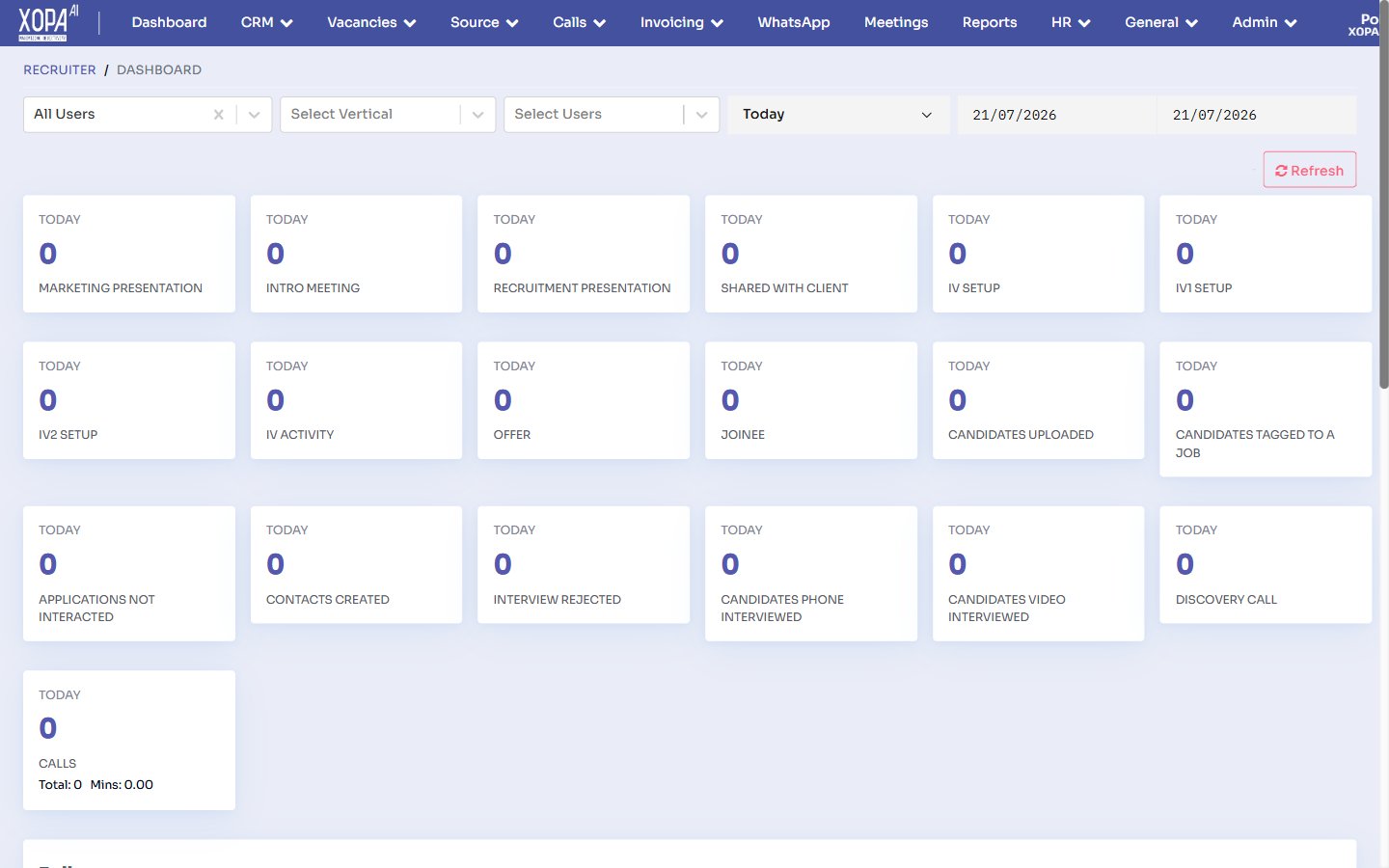
The main application shell: the top navigation bar (Dashboard, CRM, Vacancies, Source, Reports, Admin, and more), with search, language, and profile controls on the right, above the main content area.
Top navigation bar (main menus)
The menu bar across the top of every page is your primary navigation. For recruiters it typically includes:
- Dashboard — your home overview.
- Vacancies — job openings you manage.
- Source — the Talent Pool, candidate search, and passive sourcing tools.
- Interview — candidates in each interview stage.
- Reports — dashboards and downloadable reports.
- Optional modules such as CRM, Invoicing, Goals, HR, and Admin, depending on what your company has enabled.
Menu items are feature-flagged per company and per user permission. If you don't see a menu described in this guide, it may not be enabled for your organisation or your role.
Header controls (right of the menu bar)
- Search — quickly find candidates, vacancies, or records.
- Notifications (bell icon) — alerts about pipeline activity, interview feedback, and system messages.
- Profile menu — access your profile, settings, and sign-out.
Profile & notifications
- Select your avatar or name in the top-right to open the Profile menu, where you can update your details and preferences.
- The Notifications area lists recent activity relevant to you. Select a notification to jump straight to the related record.
Signing out
Open the profile menu in the top-right and select Sign Out. For security, X0PA AI also signs you out automatically after a period of inactivity.
Next steps
Continue to Key concepts & terminology to learn the language of the platform.